

The following tutorial uses the official VPNUK app designed for Android devices which is a free download from Google Play store. The VPNUK app is our recommended connection type for all Android devices because it offers a very simple user interface which requires very little user configuration. Your Android device must be running version 5.0 (Lollipop) and higher for this app to be compatible with your device.
Screencast Tutorial
Step-by-Step Setup Guide
Install VPNUK App for Android
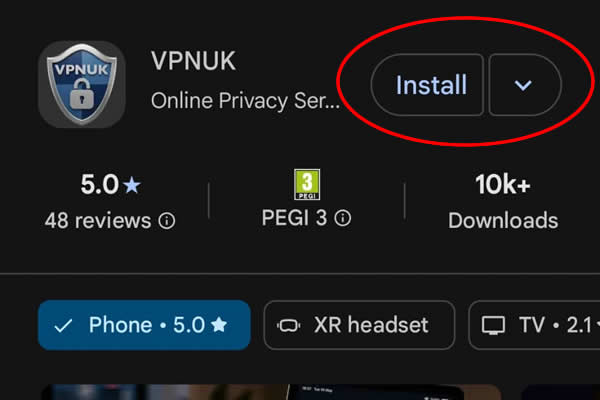
Go to the Google Play Store on your Android device and download the official 'VPNUK' app. If you are unable to use PlayStore, you can download the VPNUK app from from our GitHub repository.
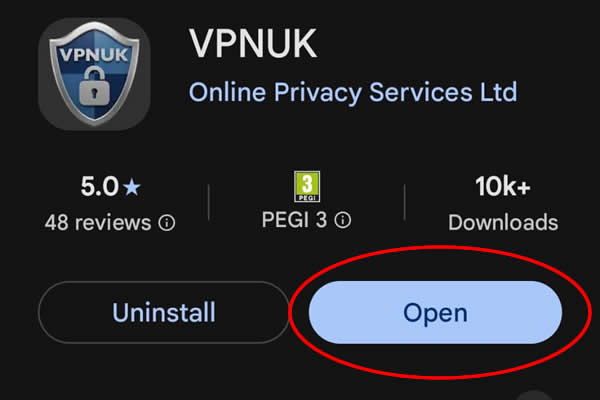
Open the VPNUK App
click onto the Open button to run the app for the first time.
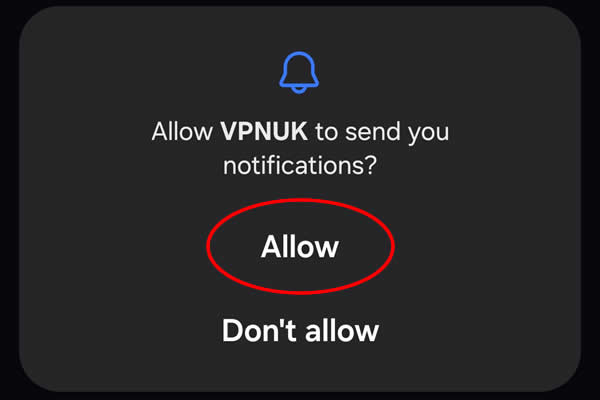
All Notifications
Android insist that the app is allowed to send Notifications, click allow..
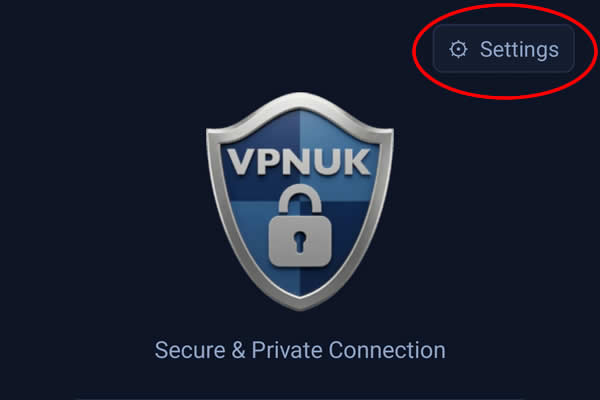
Configure new Android connection
Enter the Android connection settings by clicking onto the settings cog.
Configure Android Connection
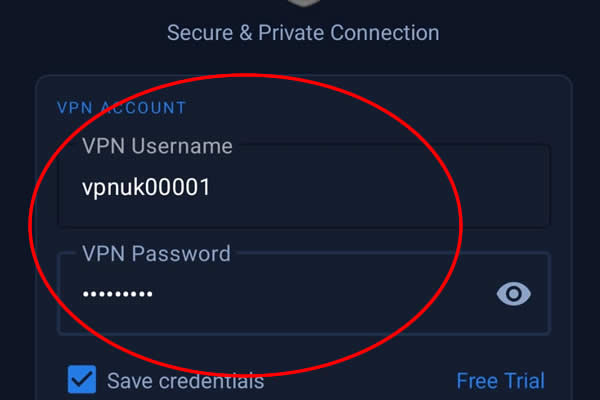
Enter your VPNUK login 'Username' and 'Password' and check the 'Save Credentials' box if you would like the app to save your login details. Youi can find the VPN login credentials in your welcome email or the members area.
Choose Connection Type
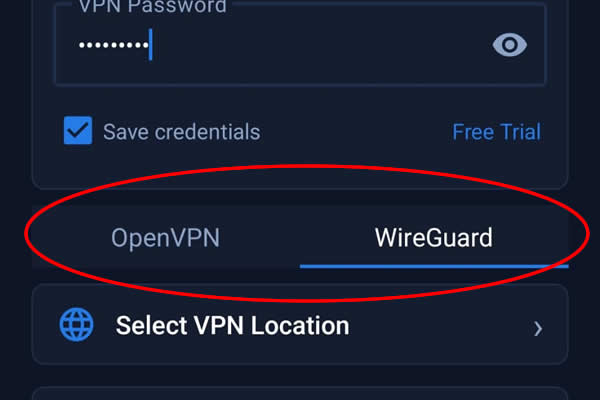
You can choose OpenVPN or WIreguard as the type of connection.
Choose Server
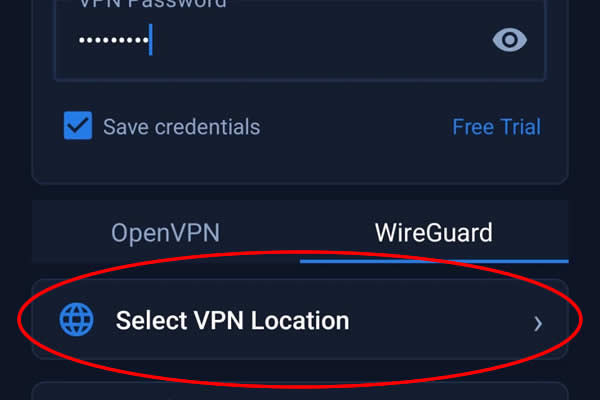
Click onto the server selection button.
Select Server
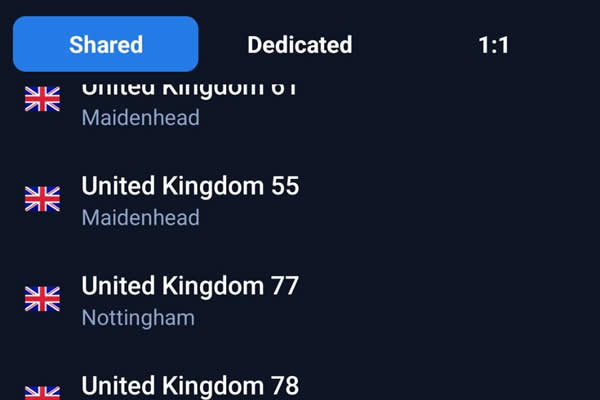
Choose your VPNUK account type and select your server. If you have a Shared IP account you can connect to any of the Shared IP servers. If you have a Dedicated IP account or a 1:1 Dedicated IP account please choose your connecting server, you can find these details in your welcome email or in the members area. All Dedicated IP account holders also have unlimited access to all of our Shared IP servers.
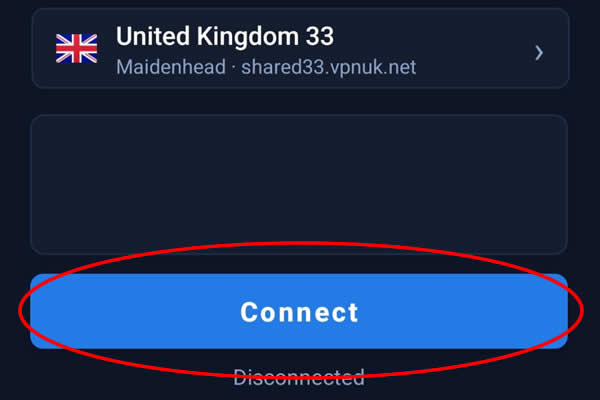
Connect
You can now connect to your VPNUK account through the Android app.
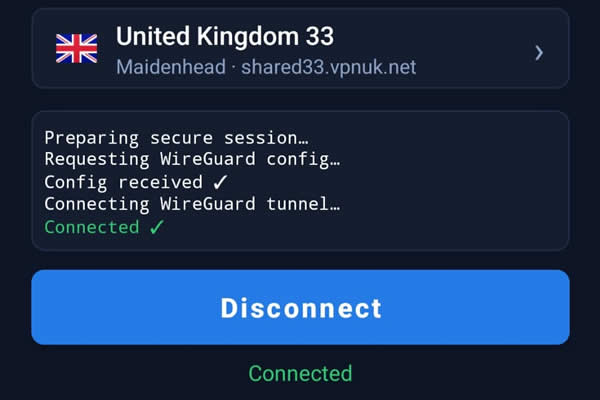
Connected!
Your account will now be connected to the VPN on your Android device. If you would like to disconnect or switch to a different server, click onto the 'Disconnect' button and choose a different server..
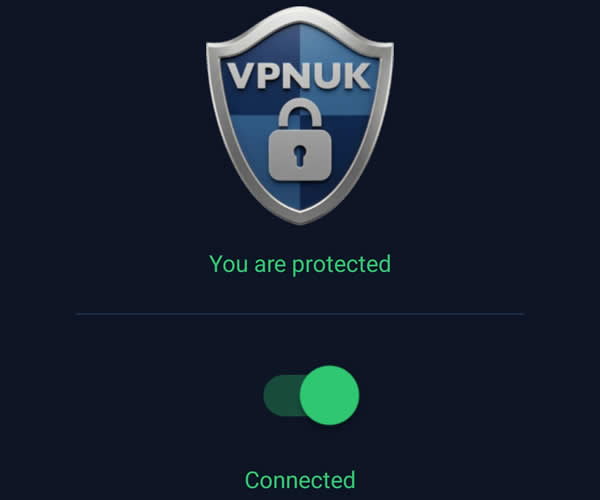
QUick Connect
You can now connect to the service from the Quick Launch screen by using the quick connect toggle. If you would like to edit your connection in future, click onto the settings cog on the top right of the screen
Optional Settings
The VPNUK App comes with a whole host of user configurable connection settings, options and troubleshooting aids. We will now go through these with you and explain what each optional setting does.
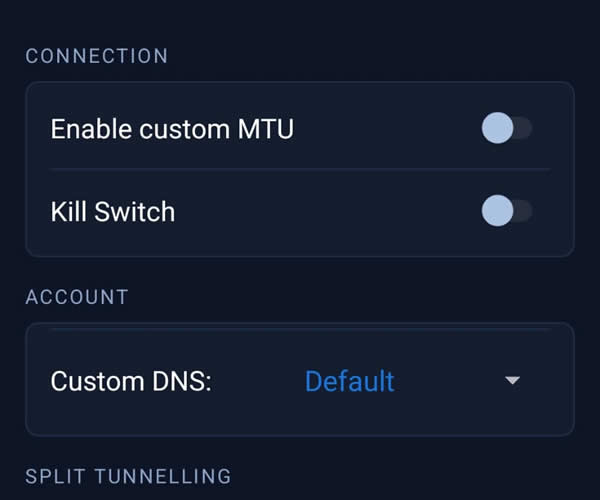
- Enable Custom MTU. Adjusting the MTU can sometimes help with connection and speed issues.
- Kill Switch. Designed to disable all internet access should your VPN connection drop out for any reason.
- Custom DNS. You can choose to run your VPN through the default VPN DNS settings or you can choose from one of the many third party DNS providers.
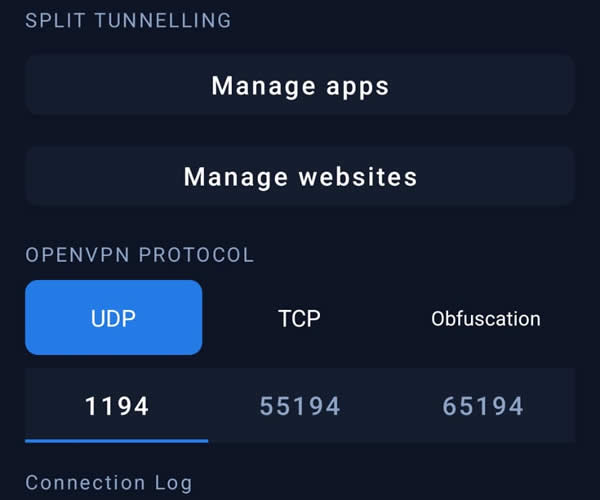
- Manage VPN Connection for apps & websites. This optional setting is called Split Tunneling and is useful if you would like to route specific websites or apps outside your VPNUK connection, should you wish to use your local internet provider for any services or websites rather than the VPNUK connection.
- Protocol and Ports for UDP and TCP connections. We have three ports for UDP and three ports for TCP. Obfuscation also uses its own Protocol and port. You can switch protocol and port if you have any problems with connecting.
- Obfuscation. You have the capabilities of connecting over an Obfuscated connection. This means you can block Deep Packet Inspection — it's a great way of adding additional security and privacy to your VPNUK connection by making your VPN traffic appear as regular web traffic, but with the added benefits of privacy, security and encryption the VPNUK connection gives you.
- Log. If you have any problems connecting to the VPNUK service and reach out for help we will usually ask you to provide us with the log — it's an excellent way of troubleshooting any connection problems.
- Delete account. This is a new Google requirement and should only be used if you no longer have a VPNUK account, or subscription. Delete account will completely remove all traces of your user and VPN account from the VPNUK system.
Troubleshooting Guide
Your VPNUK account should work first time, every time. If you ever experience any problems with your VPN connection the first thing we urge you to do is contact us on our Live Help service — we can offer instant assistance with all connection issues and get you back online. The following is a basic troubleshooter for the more common issues that can arise from our VPN service. Our Live Help service may ask for you to send the connection log.
- Cannot Connect. If your connection suddenly stops working: You can Switch between OpenVPN and WireGuard®. If your connection is OpenVPN go to Optional Settings, change the Protocol from UDP to TCP or vice versa. You can also try enabling Obfuscation.
- Connection is slow. Switch between OpenVPN and WIreGuard. Go to Optional Settings and change the Protocol from UDP to TCP or vice versa. You can also try lowering the MTU slightly, one step at a time and using a third party DNS provider.
- Connection Blocked. Go to Optional Settings and switch on Obfuscation.
- VPN Connects but not routing traffic. Go to Optional Settings and lower your MTU. If that does not work you can also try enabling Custom DNS.
- Nothing Works. Please contact our Live Help team. Please copy or screenshot the last dozen or so lines of the connection Log to send to us.
Config File Generators
Need a manual config file? Generate OpenVPN, WireGuard® or Obfuscation configs directly from your Members Area.